Developer Diaries
Developer Tools
Navigating the Transition: My Late Journey to Linux as a Software Developer

Saroj Aryal
April 30, 2024
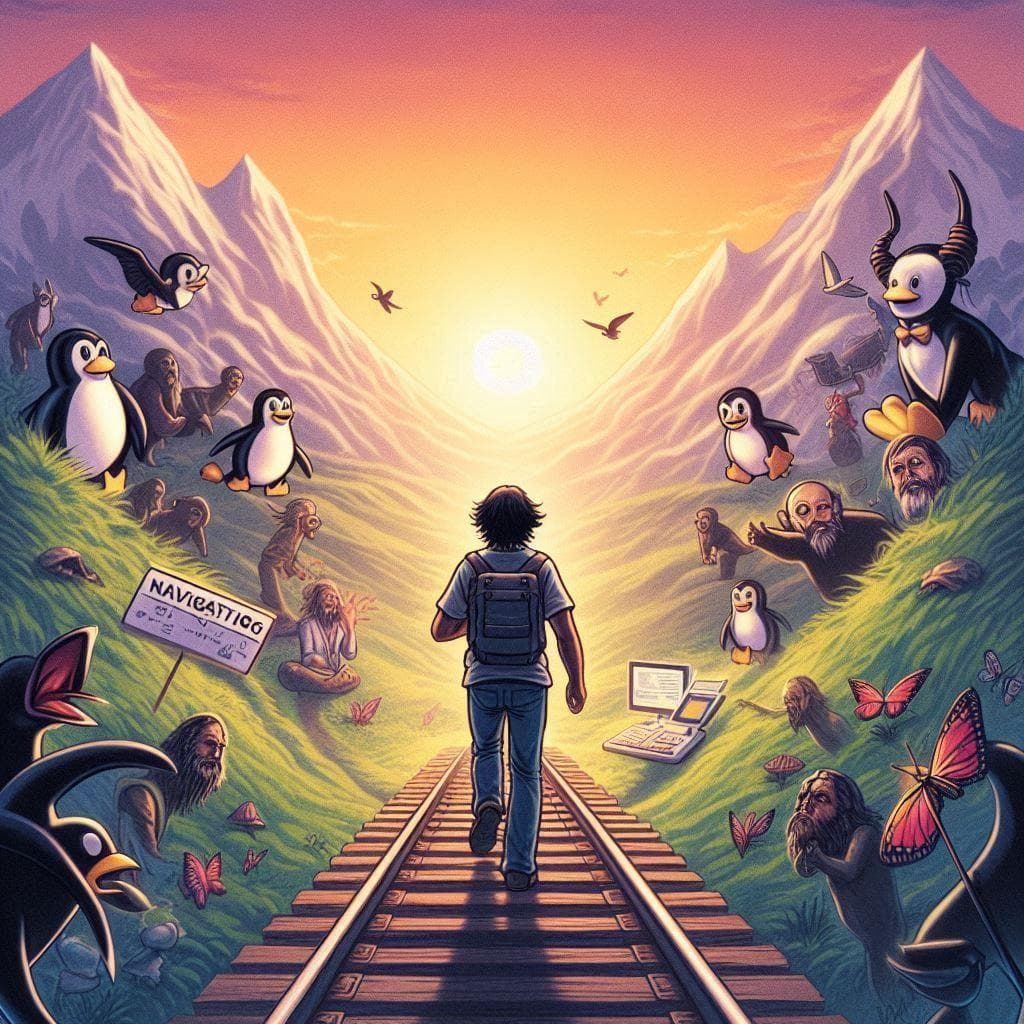
Switching from Windows to Linux as a developer felt like moving to a different country. Everything works, but nothing is where you expect it. I made the switch late — years after most of my colleagues — and I want to share what that transition actually looked like.

When I first installed Linux, two things stood out immediately: how much control the terminal gives you, and how lost you feel without a GUI for everything. The flexibility is real, but so is the learning curve.
Linux is an operating system, like Windows or macOS, but it leans heavily on a text-based interface called the terminal. Most things you'd click through in Windows, you type as commands in Linux.
It sounds intimidating. It's mostly not.
Here's how I got started.
Learning the terminal
The terminal is where you'll spend most of your time. These are the commands I used daily from the start:
- ls: Lists files and directories in your current location. Type
lsand press Enter. - cd: Changes directory.
cd Documentsmoves you into the Documents folder. - mkdir: Creates a new directory.
mkdir Projectsmakes a folder called Projects. - touch: Creates a new empty file.
touch index.htmlcreates that file in your current directory. - rm: Deletes files or directories. Be careful — there's no recycle bin. Deleted means deleted.
- cp: Copies files.
cpfollowed by the source and destination. - mv: Moves or renames files. Same syntax as
cpbut the original disappears.
With just these commands, you can navigate files, create projects, and manage your workspace without touching a mouse.
Setting up the dev environment
Once the basics clicked, I set up my tools. The first decision is which Linux distribution to use. Ubuntu and Fedora are the most beginner-friendly options — large communities, plenty of guides, and sensible defaults. I went with Arch, which is a harder path but teaches you more about how the system actually works.
After installing the distro, the next step is getting your editor and toolchain running. VS Code, Atom, or Sublime Text all work on Linux. Then install your language toolchains through the package manager. On Ubuntu, that looks like:
sudo apt update
sudo apt install build-essential
Migrating projects from Windows
This was the part I worried about most, and it turned out to be straightforward. Back up your code, transfer it to the Linux machine, and fix file paths. Windows uses backslashes; Linux uses forward slashes. Most projects need minor path adjustments and nothing else.
For a Node.js project, install Node and npm on Linux, navigate to the project folder, and run npm install. The dependencies resolve from package.json the same way they did on Windows.
Git made the transition easier. Since all my code was already in repositories, I just cloned everything fresh on the Linux side.
Asking for help
One thing that surprised me: the Linux community is genuinely helpful when you ask specific questions. StackOverflow and Reddit's Linux subreddits answered most of what I ran into. I also started contributing to a few open-source projects, which forced me to learn the tooling faster than any tutorial could.
Was it worth it?
Yes, but I won't pretend the first two weeks weren't frustrating. Things that took one click on Windows sometimes take three terminal commands on Linux. But after that adjustment period, the speed and control are hard to give up. The terminal becomes faster than any GUI once the muscle memory builds.
If you're considering the switch, my advice: pick a beginner-friendly distro, commit to using the terminal for a week straight, and keep your Windows partition around as a safety net until you're comfortable. The transition is real work, but it pays off.
linux
programming
security
technology
ubuntu